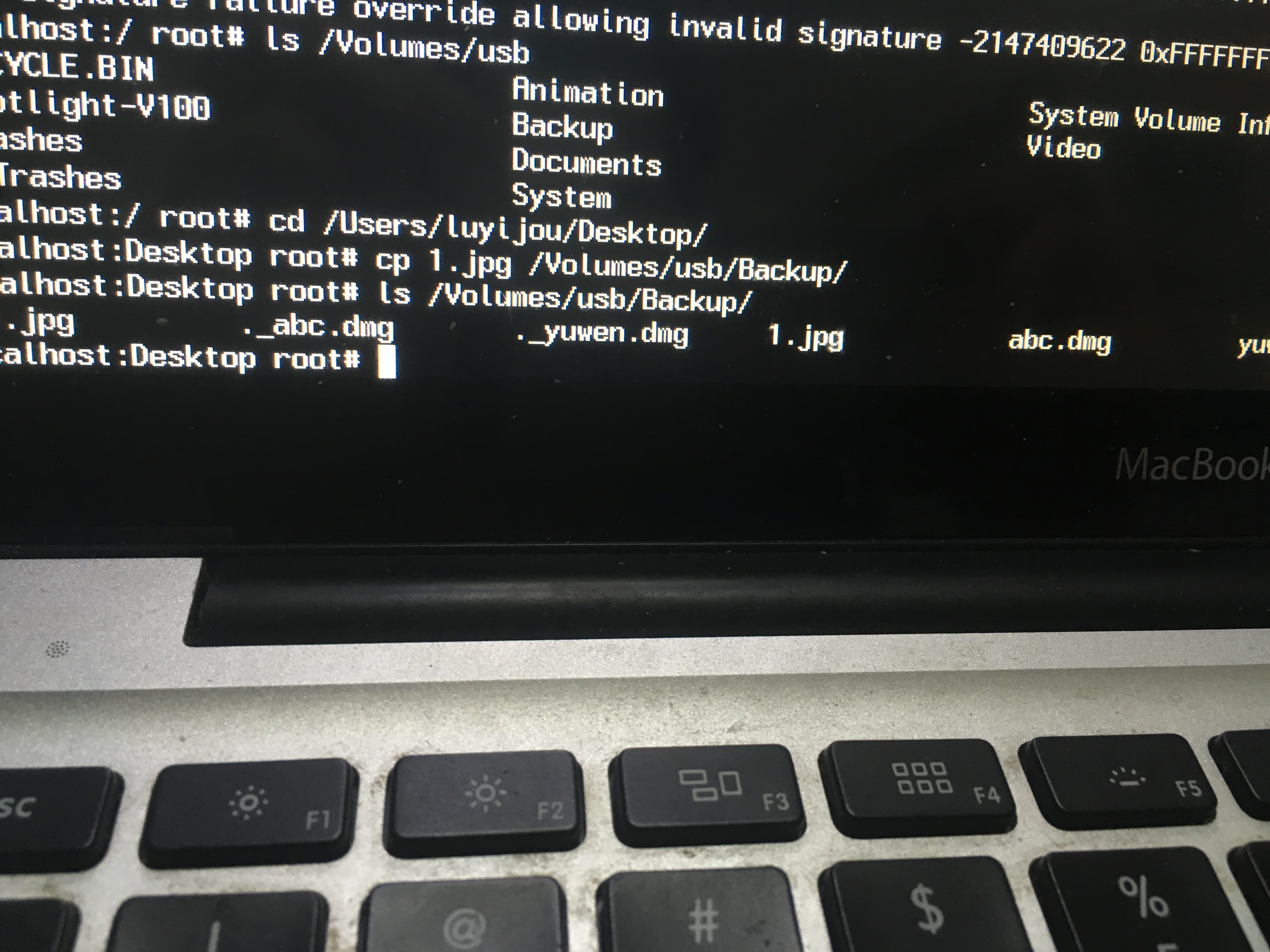
Use single-user-mode to access files from a mac without login
title: Use single-user-mode to access files from a mac without login author: Aynakeya tags:
- tutorial
- macos categories:
- Programming date: 2019-05-26 18:23:29
On May 23, 2019. I accidentally drop my MacBook, which looses the connection between the motherboard and hard drive. After I reconnect the SATA cable and restart my computer, I found that my laptop stuck after I enter the login password.
##First try: In recovery mode, reset the password.
See instruction at:
https://www.macworld.co.uk/how-to/mac/forgotten-mac-password-3594395/
or https://support.apple.com/en-hk/HT202860
or https://jingyan.baidu.com/article/6f2f55a163030bb5b83e6c71.html
However, I failed.
##Second try: I first try to set up a new user by using single user mode.
See instruction here: https://zhidao.baidu.com/question/528962469.html
However, after I set up the new user, I still got stuck when I try to login into the system.
##My solution Since I have a Time Machine backup in January, I can recover my computer using Time Machine. However, I still need to backup some important information that is not in the Time machine. After doing some research, I successfully copy the important file from MacBook using single user mode.
###Copy file without login:
If your mac running a macos higher than El Capitan, you should first remove “System Integrity Protection” before entering the single user mode.
-
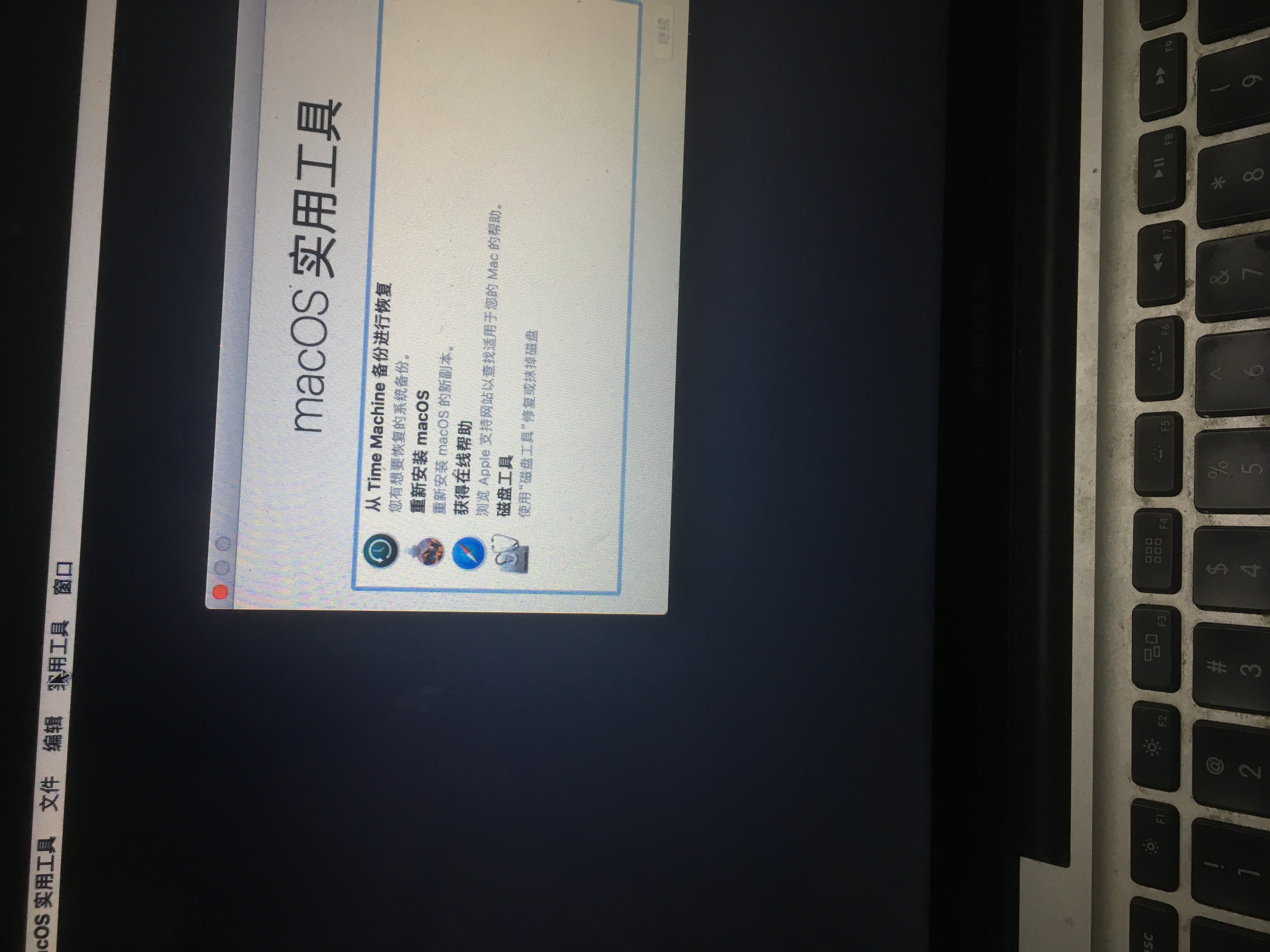
Reboot your mac and press command + R, go to the recovery mode.
-
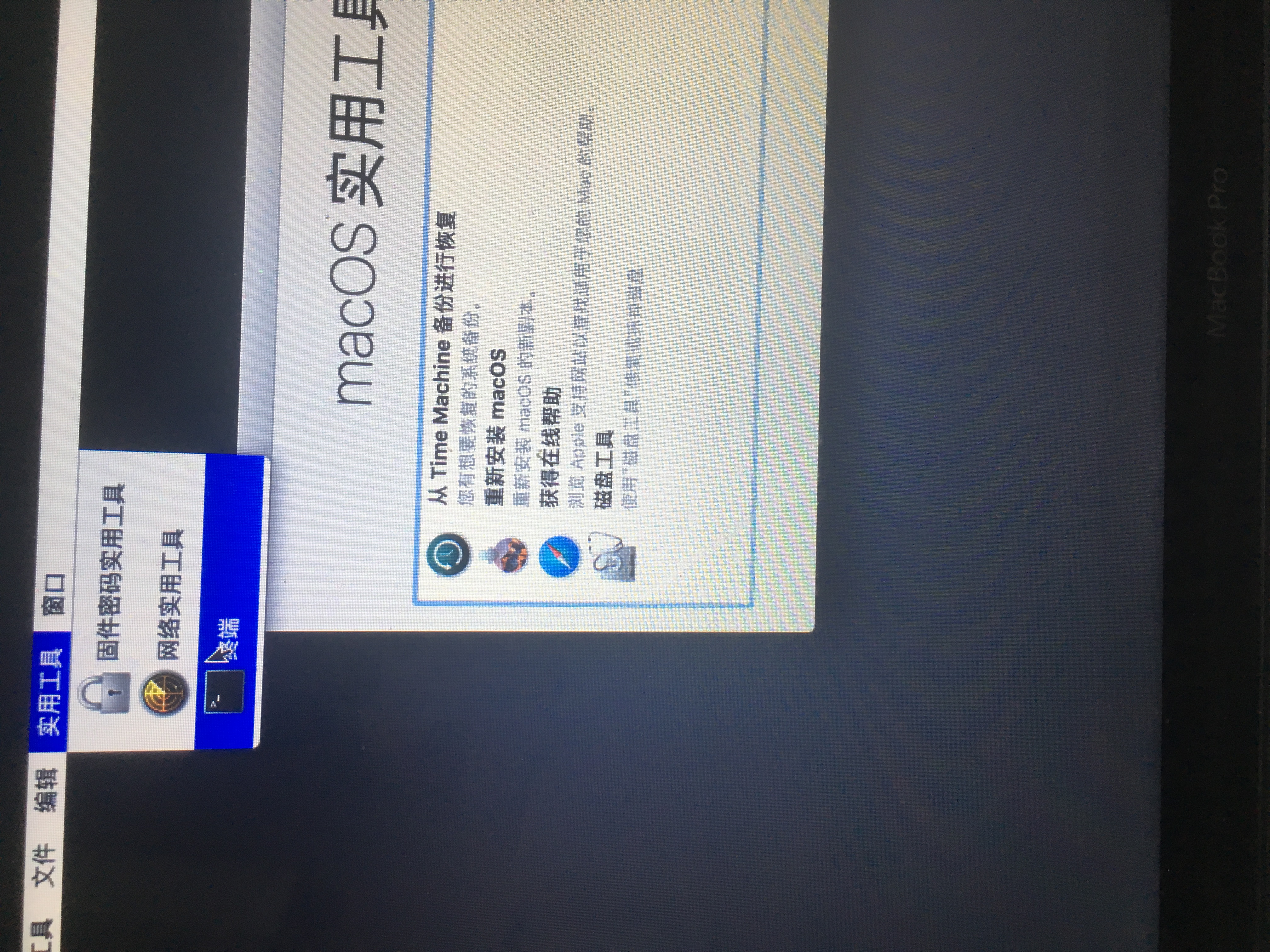
Click on the "Utilities" menu, and then click on "Terminal" to open terminal.
-
In the terminal type
csrutil disableand enter.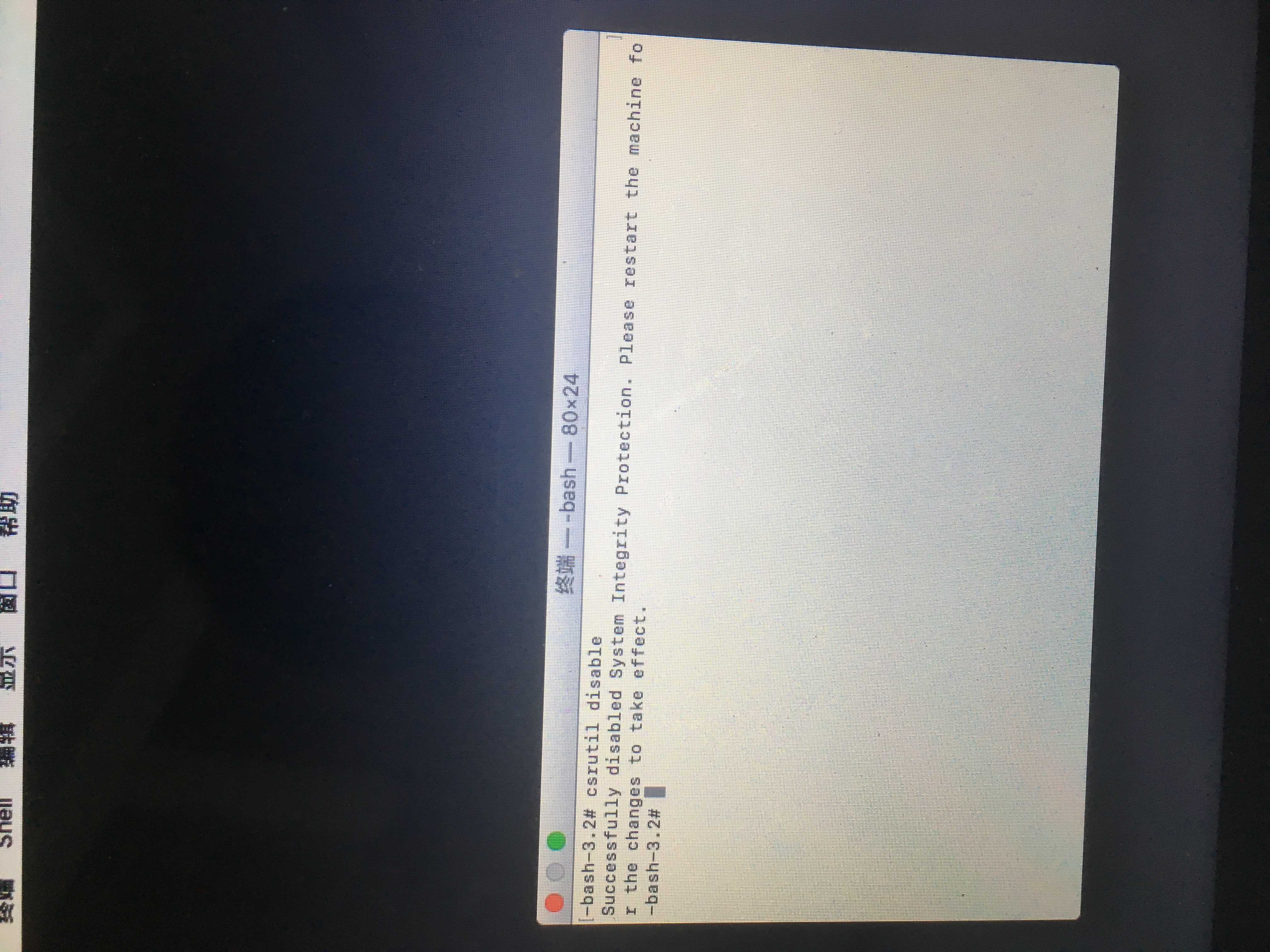
If your mac running a macos lower than El Capitain, ignore the step above.
-
reboot again, but this time press command + S to enter single user mode.
-
Follow the instruction, type
/sbin/fsck -fyand press enter (if this command does not show “The volume xxx appears to be OK”, you should run this command multiple time until it shows this message)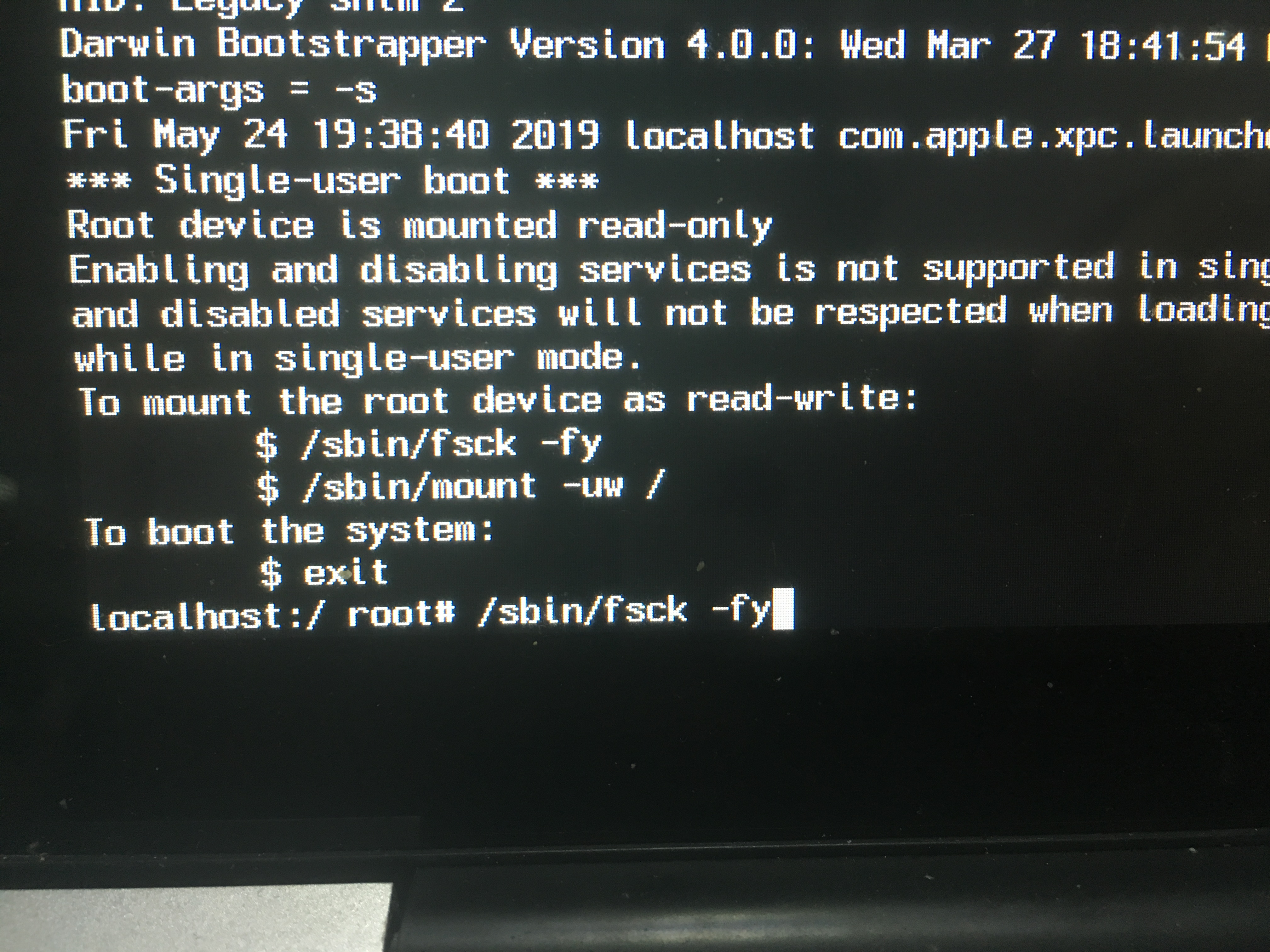
-
type
mount -uw /and press enter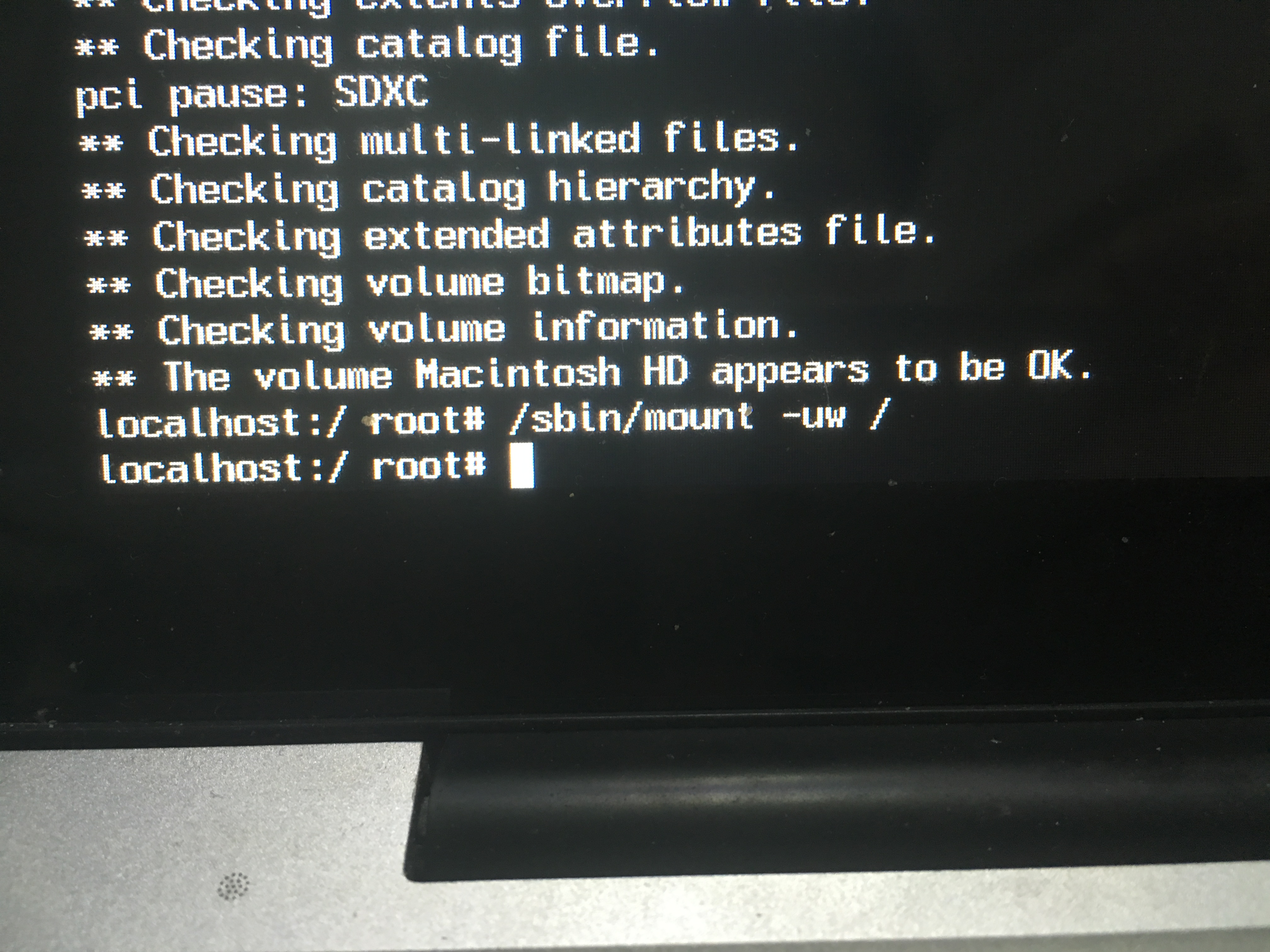
-
type
mkdir /Volumes/usbto create a directory for external storage device (using later).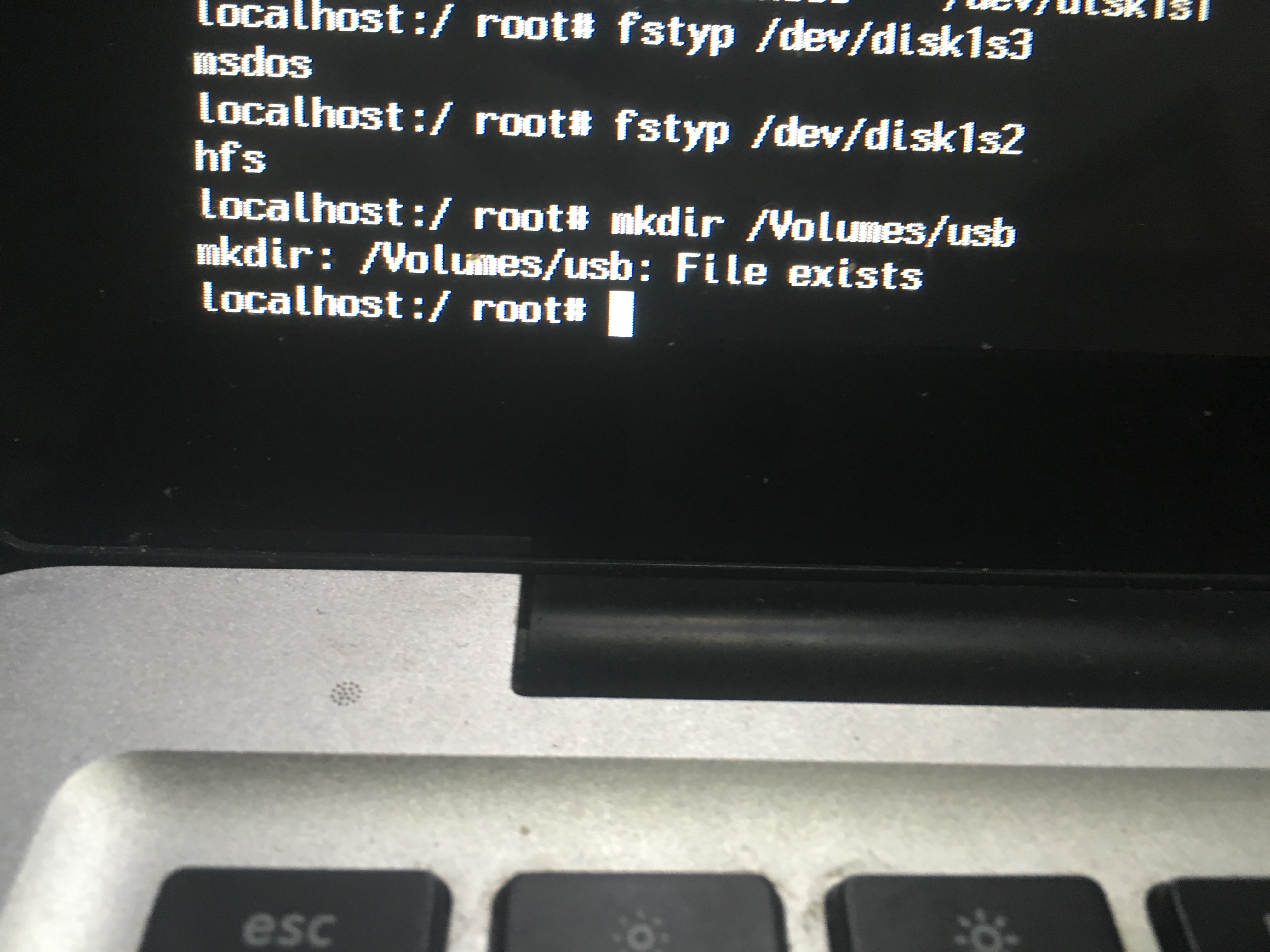
-
type
ls /dev/disk*to show current disks. -
plug in an external storage device (USB or other things), type
ls /dev/disk*to find which is the external storage device (often the last one in the list).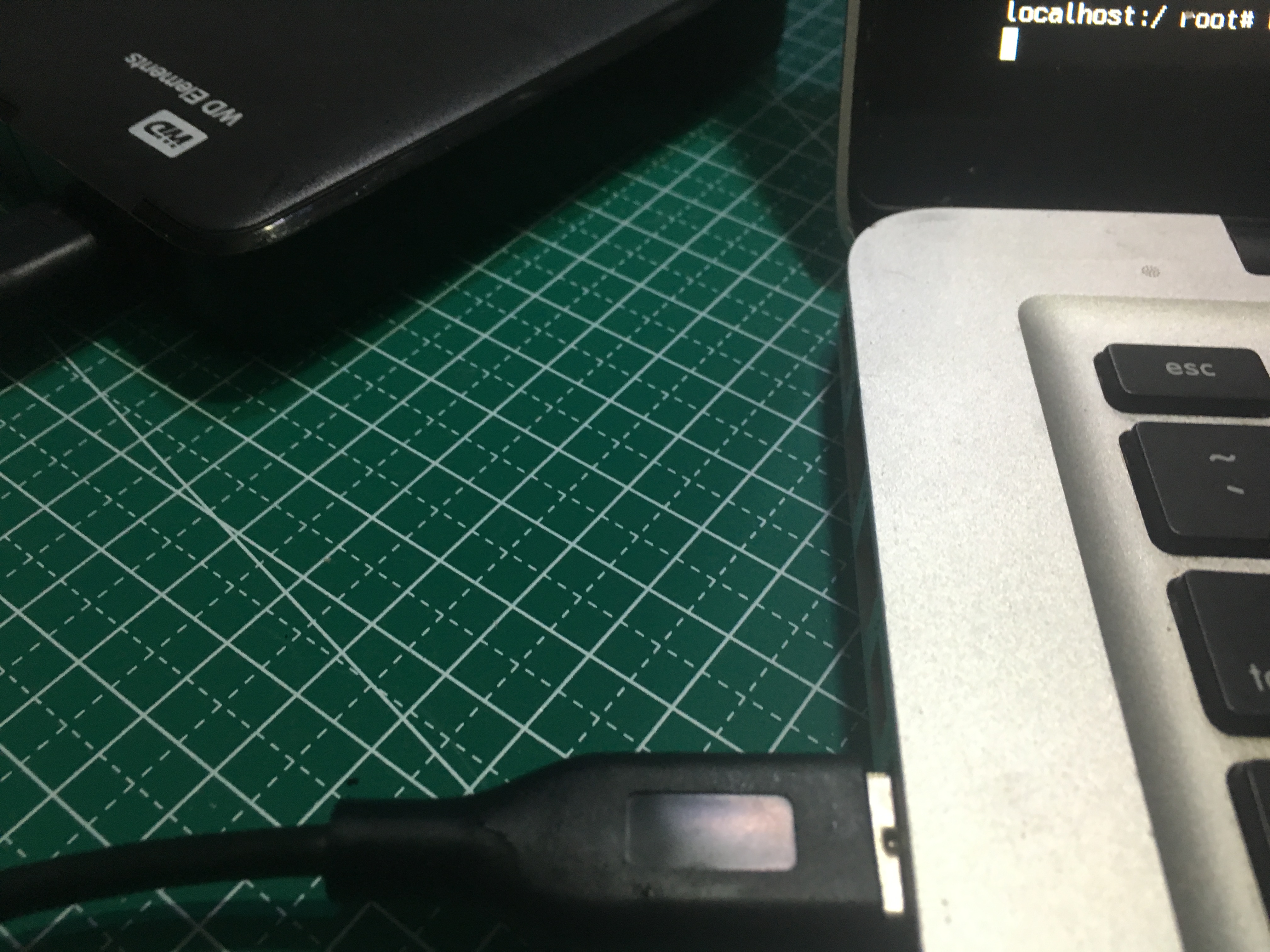
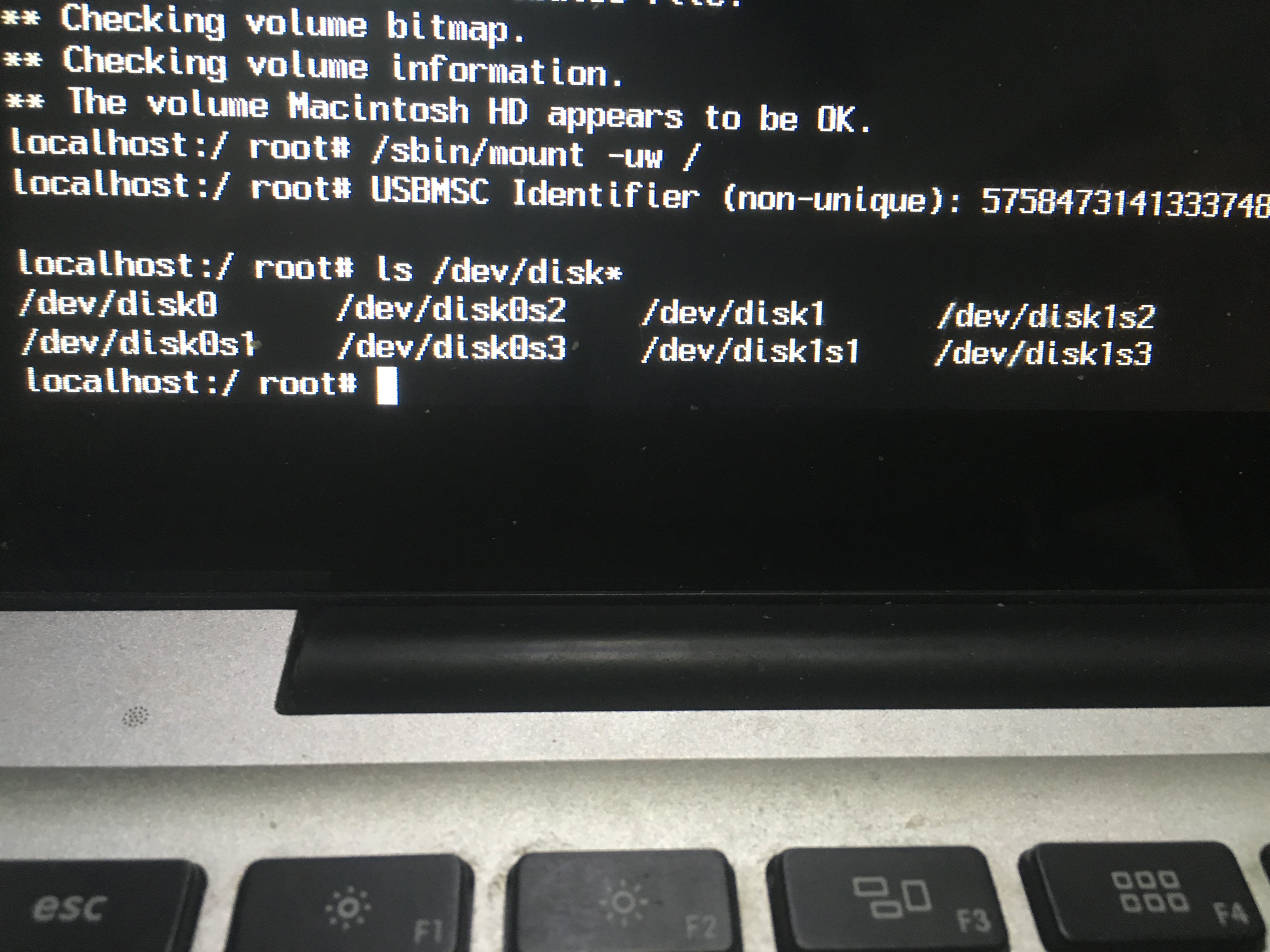
-
type
fstyp /dev/disk1s3(depends on which disk you are using) to find the system of the disk, (Interest things is that although my drive is exfat, the fstyp shows msdos).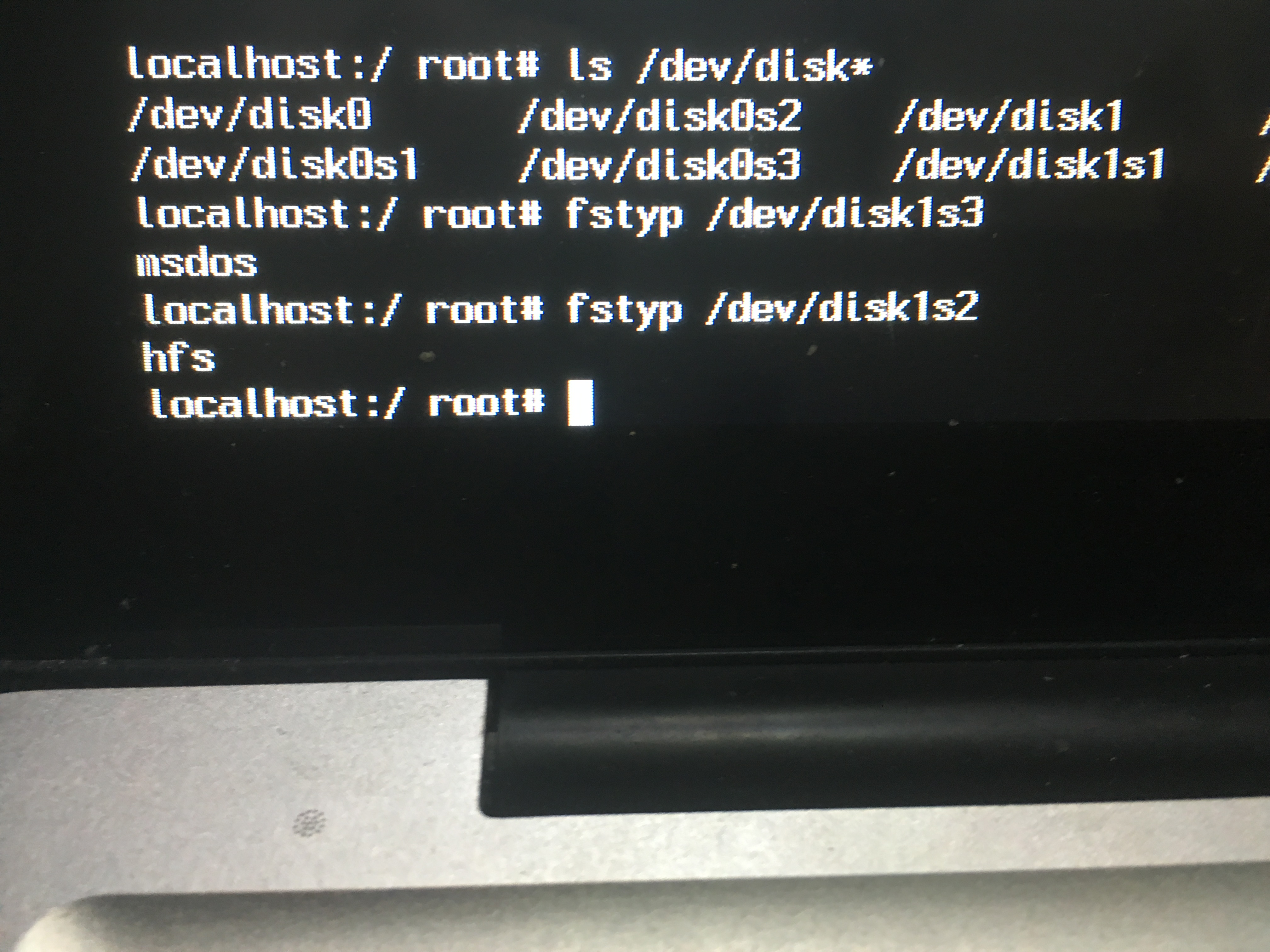
-
according to 7, type
/sbin/mount_exfat /dev/disk1s3 /Volumes/usbto load storage device. Depending on your file system, you may choose a different command. For example, if your device is using msdos file system, you should type/sbin/mount_msdosinstead of/sbin/mount_exfat. You can see all the supported file system by enteringls /sbin/mount_*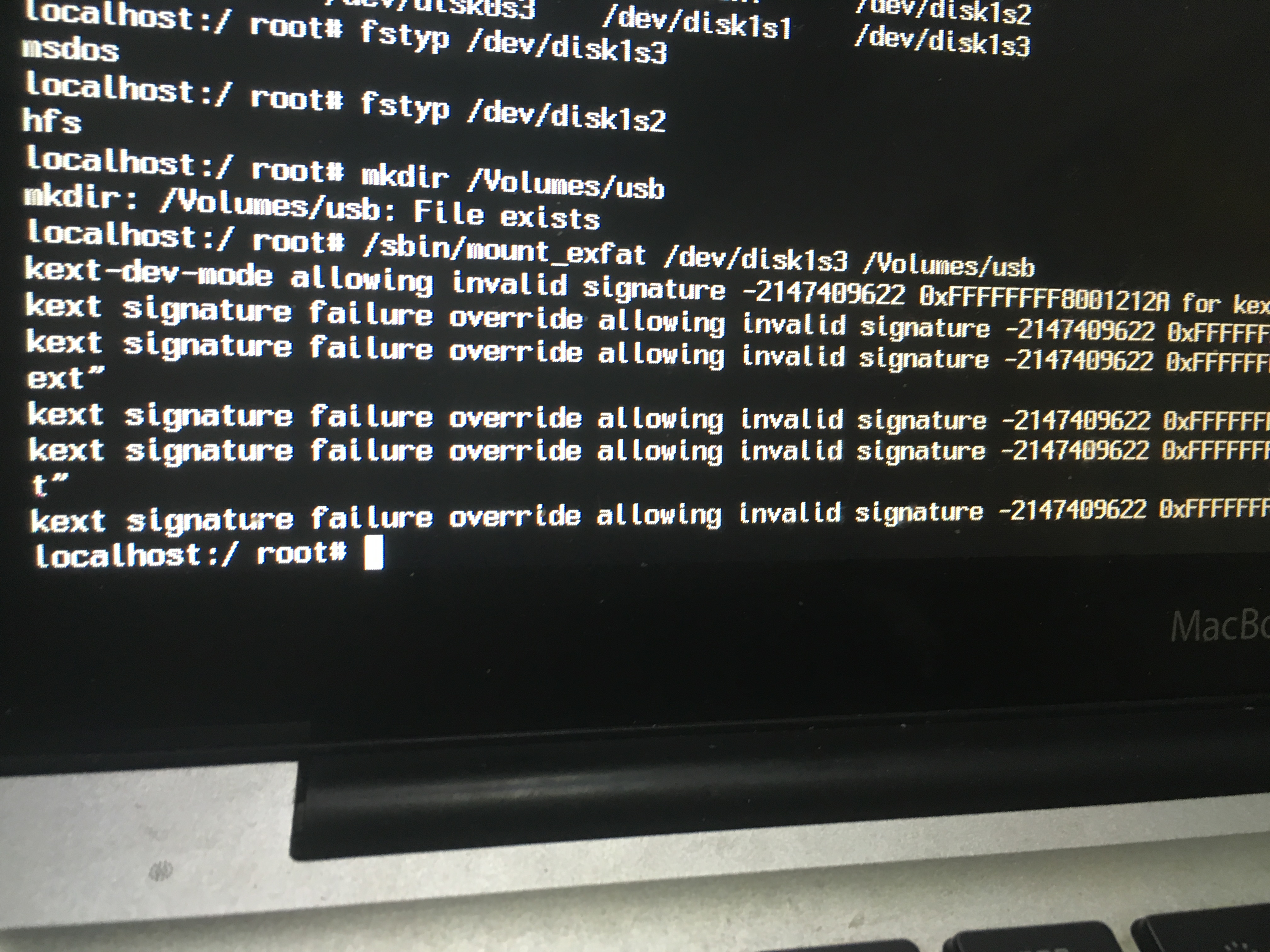
-
if the external storage is loaded success, you can now access your external drive. Type
ls /Volumes/usbto find out.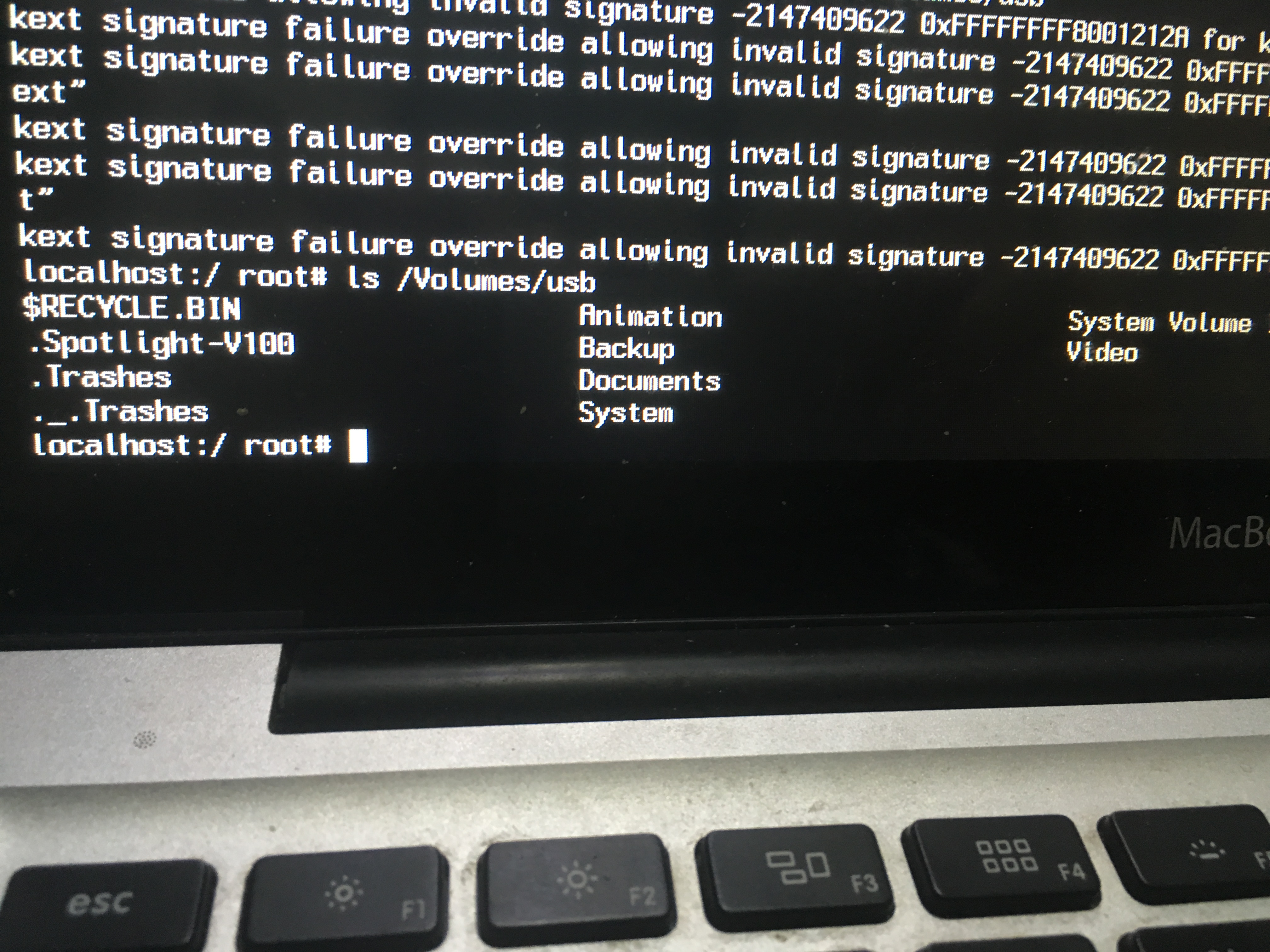
-
Copy file to your device by using command cp. Eg:
cp /User/xxx/Desktop/1.jpg /Volumes/usb